How To Fix Audio Not Working on Discord Stream
Are you having any sort of Discord stream audio problems? Don’t worry, we’ve got you. We know that getting your audio right is important for a smooth streaming experience, whether as a beginner setting up your first stream or an experienced streamer troubleshooting persistent sound issues. In this guide, you’ll learn how to share game audio on Discord, configure your microphone and screen-sharing settings, and fix common Discord audio issues on Windows and macOS. Let’s get your audio sound up.
The Right Way To Share Your Audio On Discord
If you want to ensure your viewers hear your game audio perfectly from the very first second, you need to know the correct way to share your screen. Here is a step-by-step guide on how you can rightly configure your broadcast parameters every single time you want to stream.
Step-By-Step Walkthrough
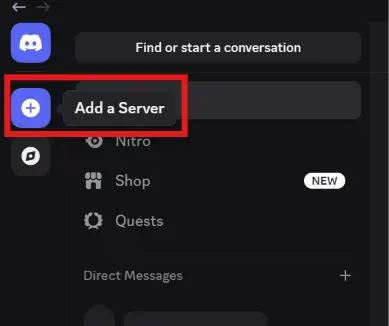
Step 1: Create a Server: If this is your first time using Discord, you will have to create a server. To do that, check the far left of Discord for a big plus sign. Click on it.
You’d get a pop-up asking you to either create your own server, start from a template, or join a server with an invite. Select ‘Create My Own’. Name it and hit Create.
Step 2: Find a Channel: Your Server should now show on the far left side. Click on it and look for Voice Channels. In the top right of the Voice Channels tab, there will be a plus sign to create a channel. Click that.
Select Channel Type: Voice, name the channel, and hit Create Channel.
Step 3: Click to Join: Now the channel you created should appear under the Voice channel tab.
Double-click on it; you will hear a connection chime, and you might get a message asking you to allow microphone access. Make sure to allow the microphone.
Step 4: Share your screen: Once you are connected, four icons will appear in the channel. Can’t find it? Look at the bottom left corner of your screen, just above your username. The second one says ‘Share screen’. Click on that.
Step 5: Pick Applications: Once y



Comments
No comments yet. Be the first to share your thoughts.