How to Set Up a Webcam Microphone: Step-by-Step for Windows, Mac, and Apps
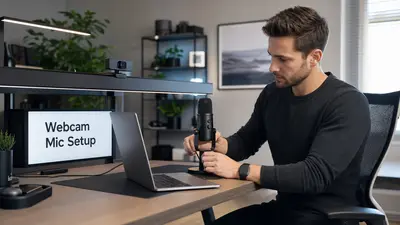
Your webcam is connected, but your video call is still pulling audio from the laptop’s built-in mic. This is one of the most common setup frustrations for remote workers, educators, and streamers. Keep in mind that setting up a webcam microphone requires three separate steps. And this guide explains everything with the Hollyland Lyra webcam. The same steps also apply to other UVC webcams.
Before You Start: What Webcam Microphone Setup Actually Involves
Setting up a webcam microphone requires three layers:
The OS must recognize the webcam as an audio input device
You must select it as the default microphone in system settings
You must choose it inside each individual application. Skipping any layer means your apps will continue defaulting to a different mic
The Hollyland Lyra connects via USB-C and is UVC-compliant, meaning Windows 10/11 and macOS 12 and later recognize both its video and audio streams automatically on connection. No driver download is required before you begin the steps below.
Step 1: Connect the Webcam and Confirm the Microphone Is Detected
Before adjusting any software setting, confirm the Lyra is physically mounted, connected, and recognized.
Mount the Lyra. Seat the front part of the magnetic mount on the top edge of your monitor.
The hinge lets you adjust the tilt angle so the lens aligns with your eye level.
Then attach Lyra to the base of the mount.
For tripod use, the base accepts a standard 1/4”-20 screw.
Connect the USB-C cable. The USB-C port is on the rear of the Lyra body. Plug the included USB-C cable into that port and into a USB-C port on your computer. If only USB-A ports are available, use the included USB-C to USB-A adapter.
Check the LED. A solid blue LED on the front face of the Lyra confirms successful USB enumeration and an active connection. A blinking LED or no light means the connection was not established. Try a different port or swap the cable before proceeding.
Verify on Windows. Open Start > Settings > Sy



Comments
No comments yet. Be the first to share your thoughts.