How to Use Your Android Phone as a Webcam: 3 Methods That Actually Work
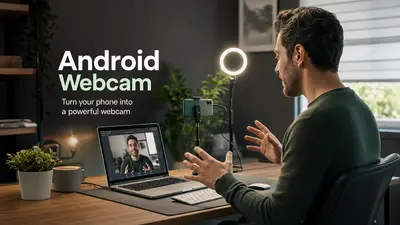
Your laptop’s built-in webcam probably looks mediocre on video calls, but the Android phone in your pocket may already be the upgrade you need. Android supports three ways to turn your phone into a webcam. Android 14 devices support a built-in mode without extra apps. DroidCam is another option that works with many devices. Other apps can help with specific needs. This guide explains each method, shows you how to set the phone as your camera source in Zoom, Teams, and Meet, and helps you fix the issues that derail most first attempts.
What You Need Before You Start
Before picking a method, confirm you have the following:
Android version : Android 6.0 or later works with app-based methods; Android 14 or later is required for the native webcam mode
USB cable : A data-capable USB-C to USB-A or USB-C to USB-C cable (a charge-only cable will not transmit data)
Computer OS : Windows 10/11 or macOS 12 Monterey or later
Video call software : Zoom 5.x+ (version 7.2.1 most reliable), Microsoft Teams, Google Meet, or OBS Studio already installed on your PC or Mac
Optional : A phone tripod clip or monitor mount to position the phone at eye level during calls
Method 1: Android 14’s Built-In Webcam Mode (No App Required)
If your phone runs Android 14 or later, this is the quickest option available. The phone exposes itself as a standard UVC (USB Video Class) device, meaning Windows and macOS recognize it as a webcam without any driver download.
Connect your phone to the PC with a USB-C data cable. Swipe down from the top to open your phone’s notifications.
Tap “Charging this device via USB” or “USB controlled by.” The exact wording depends on your phone’s manufacturer. Under “Use USB for,” select “Webcam.”
On stock Android, Pixel phones support this option starting with Android 14. Samsung phones need One UI 8.5 or newer for native wired UVC support. This option is limited to select newer models, including the Galaxy S26 series. Older Samsung phones and mid-range mode



Comments
No comments yet. Be the first to share your thoughts.