Lightroom turned my favorite lens filter into a slider –so I compared it to the real thing. This is what happened
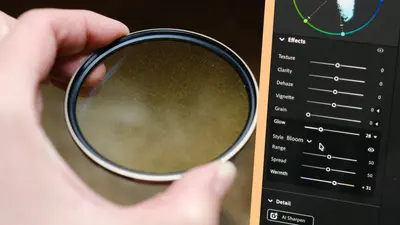
First the polarizing filter, now the diffusion filter – Lightroom lately has been turning my favorite lens filters into simple sliders. Lightroom has a new set of effect sliders called the Glow tool, designed to mimic the look of a diffusion filter, as well as effects like film halation and even streaks of light.
The filter that tends to spend the most time on my lens is a warm diffusion filter – specifically, the PolarPro MCKinnon 135 Gold Mist . My photography style is all about soft tones and warm hues, and a warm diffusion filter fits right into that look.
Naturally, I had to try out Lightroom's new slider that mimics my favorite filter. I took a photo taken without a filter and tried to edit it to mimic the same photo taken with a real diffusion filter.
What’s the Lightroom glow tool?
The glow tool is under the Effects options in Lightroom Classic and Lightroom (Image credit: Future) The glow tool is inside Lightroom 2027 and Lightroom Classic 2027 under the Effects panel.
A drop-down menu allows creators to choose from different effects – and diffusion is just one of them:
Bloom : Applies a bright glow only to the brightest areas of the photo
Diffusion : Applies a soft, dreamy glow to the entire photo
Halation : Creates glowing light sources in red and orange, inspired by film halation
Motion : Creates streaks of light from the highlights that spread in one direction
Streak : Just like Motion, only Streak creates the streaky light in two different directions instead of one
From there, a set of sliders offers control over that look:
Amount : Determines the amount or intensity of the effect
Range : Determines what parts of the photo the effect is applied to. Use a lower number to restrict the effect to just the highlights, or a higher number to allow the effect to spread beyond just the brightest parts of the image
Warmth: Controls the color temperature of the effect from blue to orange (for halation, this is more from yellow to red)
Spread : Controls the dista



Comments
No comments yet. Be the first to share your thoughts.