The devices you already own could be doing more for you. Don’t believe me? Here’s how to set up a HomePod or Apple TV as an Apple Home hub
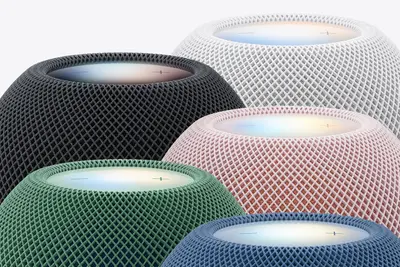
Despite being a self-professed tech fan, even I have a limit to how many boxes I’m willing to plug in for the sake of a smart light . I do like the idea of the hall light coming on when I get home in the dark, though. And if I’m away for the weekend, I’d like to be able to switch a lamp on without having to leave it on the whole time. That’s about as ambitious as I need my lighting to get.
Apple’s Home app, for what it’s worth, can do both with compatible lights. A home hub runs automations and stays connected to your smart home devices, so you can also control them when you’re out or share access with the people you live with. And if you’ve already got a HomePod or Apple TV plugged in, you may have the hardware you need already.
See which device Apple Home is using as a hub
First things first – open Home on your iPhone, iPad, or Mac, then tap or click the three dots and go to Home Settings → Home Hubs & Bridges. The active hub is at the top, and if you’d prefer to use another one on the list, you can switch off Automatic Selection and pick it yourself. Apple’s new HomeView smart display can show up here too.
Set up a HomePod or HomePod Mini
1. Connect your iPhone or iPad to your home Wi-Fi. Plug in the speaker and wait for the chime and pulsing white light.
2. Unlock your iPhone or iPad and hold it close to the speaker. Tap Set Up and follow the prompts to add it to your home.
The speaker becomes a hub as soon as you’ve set it up. If the setup prompt hasn’t appeared, though, open Home and go to + → Add Accessory → More Options, then select the speaker.
Set up an Apple TV
The Apple TV needs to be assigned to a room before it can act as a hub. On the device itself, go to Settings → AirPlay and Apple Home → Room, then choose a room or add one.
If you can’t assign a room, check that you’re the owner of the home in the Home app. You’ll also need to make sure that your Apple Account is selected as the Default User on the Apple TV – look under Settings → Profile
Comments
No comments yet. Be the first to share your thoughts.