How to use Apple Home: a step-by-step guide to adding devices, controlling them and what you need to make it all work
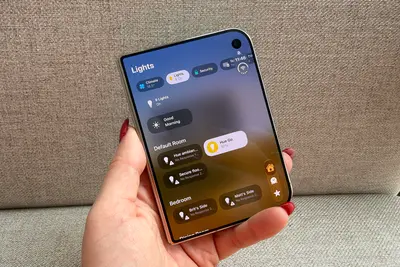
Home Alone is my favourite Christmas film, and they don’t make them like that anymore. Though, to be fair, they couldn’t even if they wanted to – the plot wouldn’t hold up in today’s world. The boarding passes would be on a phone , Kevin could video-call his parents in Paris, and a doorbell camera would have alerted the McCallister family the moment Harry and Marv crept up the drive.
Still, Kevin really needed a smart home controller. He faked an entire house party with mannequins, a cardboard Michael Jordan and a toy train, all without a single smart plug . Give him an app that switches the lights on at dusk, turns the heating up from the sofa, and shows who’s at the door, and the Wet Bandits wouldn’t have made it past the porch.
You don’t need to be fighting off burglars to want any of that, though. Coming home to a warm house, or turning off the landing light from bed, is reason enough. The harder part is choosing a system. Several big tech companies want to run your home, and many gadgets work only with some of them. If you already have an iPhone , iPad , HomeView , or HomePod , Apple Home is an obvious place to start. Here’s how to set it up, no booby traps required.
What you need before you start with Apple Home
You need an iPhone or iPad to add accessories to Apple Home. You can’t add them on a Mac , although you can boss them around from one afterwards. Before you begin:
Update your device, turn on Bluetooth, and sign in to your Apple Account with two-factor authentication and iCloud Keychain enabled.
Keep your iPhone or iPad, existing accessories, and home hub on the same Wi-Fi network. Smart homes don’t do long-distance relationships.
Read the accessory’s manual, even if you’ve never read one before. Some devices need to be set up in the manufacturer’s app first.
Compatibility: will your accessories work with Apple Home?
Check the box before you buy any smart home accessories, not after you’ve binned it because Apple Home doesn’t play nice with ev
Comments
No comments yet. Be the first to share your thoughts.