The hidden iOS 27 hack I use to turn my iPhone Duo into a distraction-free Kindle killer — here's how to do it
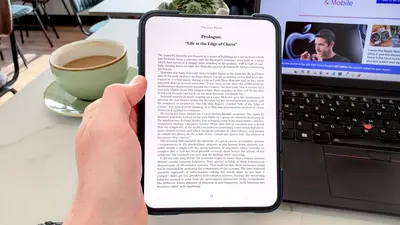
The iPhone Duo can do a lot of things : multitasking, note-taking and gaming to name a few. But I've been using it to catch up on my reading list, because the 7.6-inch inner display is perfectly proportioned to replace that new Kindle you may have been eyeing up in Black Friday sales .
The best Kindles , and other ereaders, have always positioned themselves as a distraction-free reading experience: You use them for reading books (or comics) and nothing else. There's some truth to that; I would often pick up the iPhone Duo intending to read a chapter or two during my commute only to be led astray by the siren call of my Duolingo streak or a WhatsApp message that needed replying to.
Not anymore! Thanks to a neat update to Apple's Shortcuts app that's only available on the iPhone Duo, you can automate a shortcut based on the Duo's folded state. When you pair this with Apple Books (or another reading app), you can stop interruptions or distractions before they happen.
Here's how to do it.
1. Open the Shortcuts app
(Image: © Tom's Guide)
Open the Shortcuts app on your iPhone Duo, and tap the + button in the bottom corner, then tap Edit in the top right corner .
2. Add the Automation
(Image: © Tom's Guide)
Tap on "Automation" beneath the text box and scroll down until you see the option for "Open or Closed" underneath the "Display" heading. Tap it to add the instruction to your Shortcut.
3. Add Open App command
(Image: © Tom's Guide)
Navigate back to your Shortcut menu and tap on "Open App" . The command will appear on the left-hand pane. Once added, tap the "App" on the left and select Apple Books from the drop-down menu that appears.
4. Apple Books
(Image: © Tom's Guide)
Selecting Apple Books will, by default, open the app to your current book. If you want to specify a different command — like seeing opening directly into a curated list of the books you want to read, you can do that by tapping the Apple Books app itself on the right pane and adding the instructio



Comments
No comments yet. Be the first to share your thoughts.