Forget 30fps, these GTA 6 TV calibration tips and tricks made Grand Theft Auto 6 look so much better for me – I can't believe how simple it was
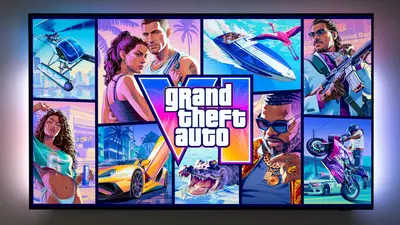
Like many, I've been playing Grand Theft Auto VI since it came out last week and have enjoyed every minute so far. However, I very recently discovered a few TV calibration tips that have made my experience even better.
As someone who has worked in the tech and games industries for a long time – including stints on gaming magazines and Home Cinema Choice – I know how to set up and calibrate a TV for general use. But there are also additional tweaks you can make in the game's own settings that make a big difference to the presentation.
(Image credit: Rik Henderson / Future) Rockstar has had an up and down time with HDR, with its original implementation in Red Dead Redemption 2 arguably making the game look worse. Not so with GTA 6 – its HDR offering is simply magnificent, especially if you have a decent TV and set up the options correctly.
That's where the tips come in. Seasoned TV expert Vincent Teoh is a good friend of T3's and he's discovered some odd things going on with Rockstar's in-game HDR settings.
He has suggested what you also need to do to the Max Brightness, Black Levels and "Paper White" settings to get an accurate, pro-standard HDR picture. All three are vital to getting the best visuals and shouldn't necessarily be tweaked in the order they appear on the settings menu.
You can find out his recommendations on his HDTVTest YouTube channel or below. Or read on to see how I followed his guidance to fix my own broken images.
When you first start the game you'll be asked to set up HDR or turn it off completely. The latter will obviously be the best option if you don't own a HDR-enabled TV or monitor. However, the game will look better on PS5, PS5 Pro , Xbox Series X or Xbox Series S if you have it switched on and do the following.
First up, you might need to adjust your actual TV's settings. Many TVs allow you to change the tone mapping, and you need it to be set on HGIG if so – this prevents your TV from automatically negating any changes you make to the



Comments
No comments yet. Be the first to share your thoughts.