How to Set Up a Microphone in Adobe Audition (Step-by-Step)
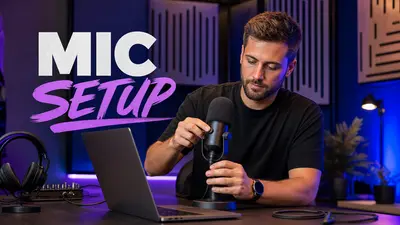
Adobe Audition is a professional audio editor, but its hardware setup is less intuitive than most consumer recording tools. If your microphone appears in your operating system but disappears in Audition, or you can’t find the preferences that control audio input, this guide covers every step. You will connect your microphone, configure audio hardware preferences, route your input to a track, calibrate recording levels, and run a test recording to confirm everything is working.
What You Need Before You Start
Quick checklist before opening Adobe Audition:
Microphone type: USB mic (connects directly), XLR mic (requires an audio interface), or a wireless system with a receiver that connects via USB-C or 3.5mm to an audio interface
Operating system: Windows 10/11 or macOS 10.13 or later
Adobe Audition version: CC 2019 or later
Driver status: ASIO driver installed on Windows for lowest latency; CoreAudio on macOS is built in
Demo device for this tutorial: The Hollyland LARK MAX 2 wireless microphone system. Components used throughout:
TX transmitter clip
Camera RX unit
OWS wireless earphones
USB-C cable
Confirm the receiver is charged before starting. A solid LED on the RX unit indicates a full charge; a blinking LED means it is still charging.
Step 1: Connect the Hollyland LARK MAX 2 to Your Computer
The most common cause of a microphone not appearing in Adobe Audition is that the device was never confirmed as recognized by the operating system. Complete the hardware connection first and verify it in the OS before opening Audition.
The Hollyland LARK MAX 2 transmitter and receiver normally pair automatically when both units are removed from the charging case. If they fail to connect automatically, you can pair them manually using the following steps.
Note: In this guide, we have used the LARK MAX 2’s Camera receiver (RX) to connect to a PC. You can also plug the LARK MAX 2 USB-C receiver into your computer .
Turn Off LARK MAX 2’s TX and RX. Switch off bo



Comments
No comments yet. Be the first to share your thoughts.